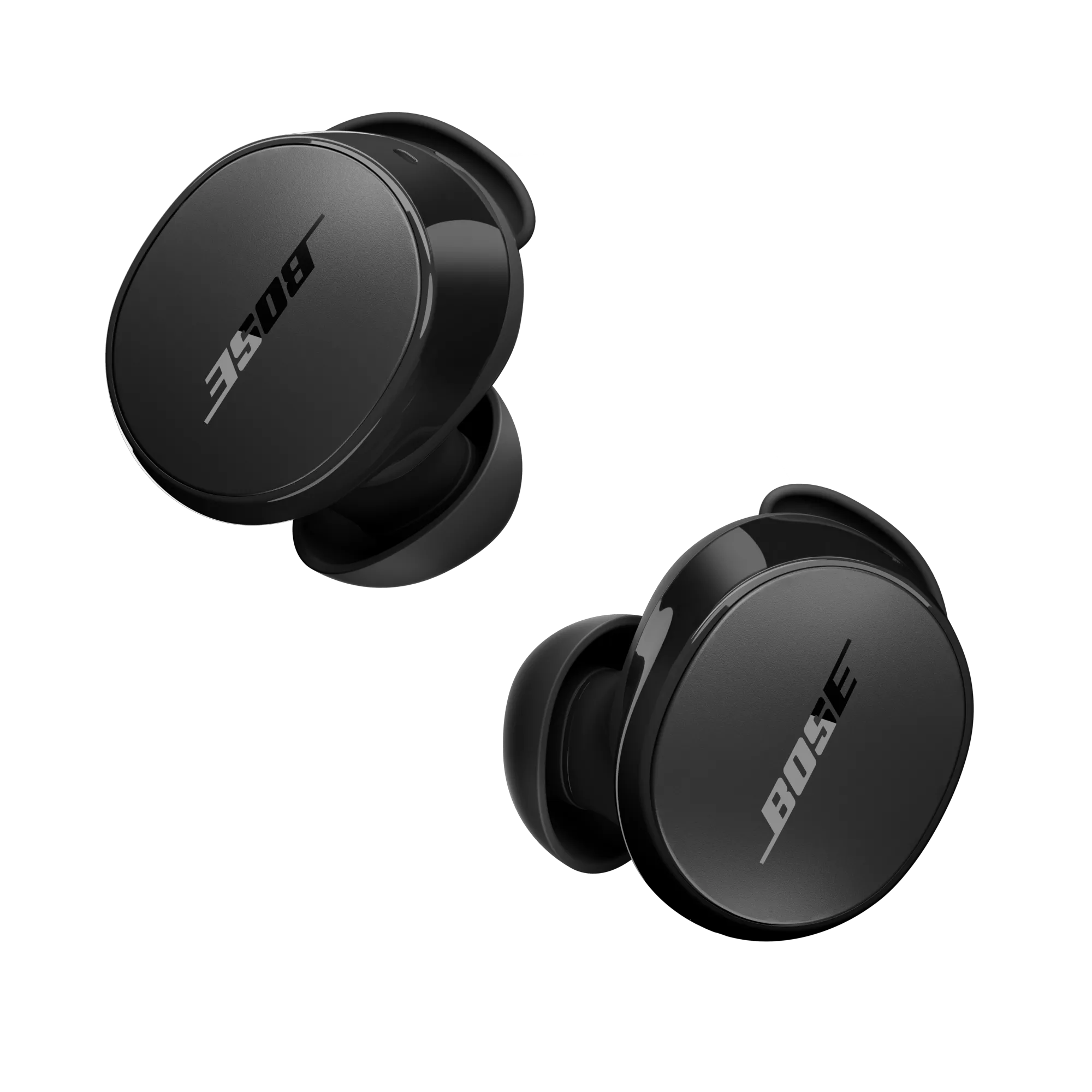


Proper fit is important for product comfort and performance. If the earbuds do not fit properly or the orientation is incorrect it could lead to poor audio or mic performance.
| Good - Logo pointed toward mouth/chin | 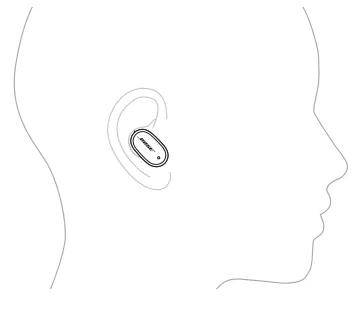 |
| Okay - More vertical ... logo pointed down toward lower neck | 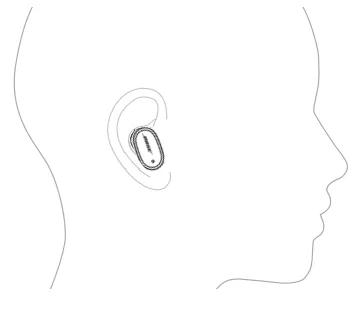 |
| Poor - More horizontal ... logo pointed toward bridge of nose | 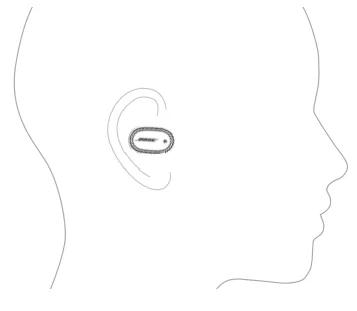 |
| Bad - More than horizontal ... logo pointed toward eyes | 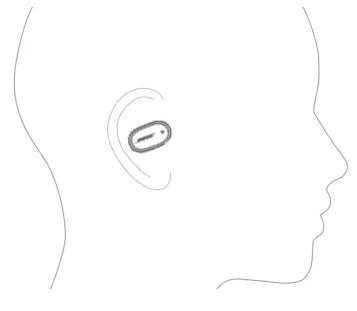 |
Check if anything is blocking any openings on your headphones, ear tips or the mesh grilles under the ear tips (i.e. ear wax, dust or other debris). For more info, see Storing and cleaning your product.
This issue may be caused by a weak connection to the cellular network. Enabling Wi-Fi calling in your phone's settings while connected to your home network can help, or you can try the call again once the reception improves.
Much like rebooting a smartphone, your product might need to be reset on occasion to correct minor issues. For more information, see Resetting your product.

